
Blog
How to Download Instagram Carousel Images (Every Method)
Every way to download Instagram carousel images — your own posts and others' — on desktop and mobile, plus how to repurpose the saved slides for LinkedIn.
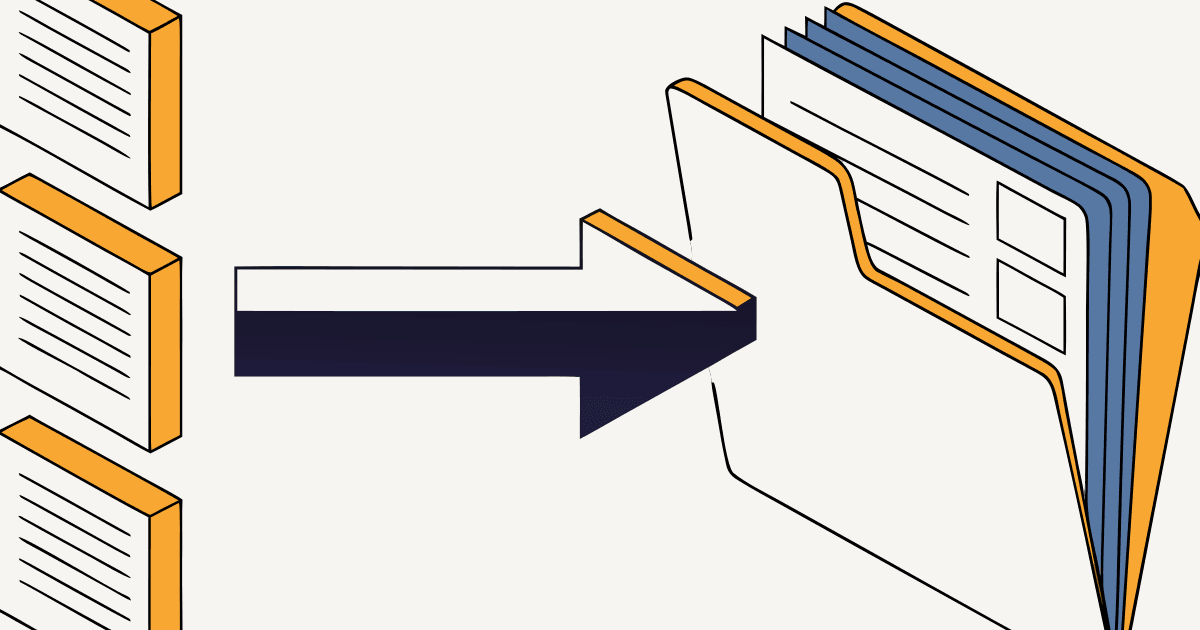
Sometimes you need the actual image files from an Instagram carousel — to back up your own content, reuse slides, or repurpose a carousel for LinkedIn. Instagram doesn't make this obvious, so here's every reliable method, for your own posts and (where allowed) others'.
A quick note on rights: only download and reuse content you own or have permission to use. Downloading someone else's slides to republish as your own isn't cool — and often violates Instagram's terms.
Method 1: Download Your Own Carousel (Best Quality)
If it's your post, go straight to the source — you'll get the original, full-resolution files.
From the original design tool: if you made the carousel in Canva, Figma, or Photoshop, just re-export the slides. This is always the highest quality.
From Instagram's data download:
- Go to Settings → Accounts Center → Your information and permissions → Download your information.
- Request a download of your content (choose high quality).
- Instagram emails you a link; the archive includes your original carousel images.
This is the cleanest way to recover your own slides if you no longer have the source files.
Method 2: Save on Mobile (Your Posts)
For your own posts, you can also use the bookmark/save feature or screenshots — but screenshots lose quality and include UI. Prefer the data download above for anything you'll republish.
Method 3: Desktop Browser (Your Posts)
On desktop, open your post, and use your browser's tools to inspect and save the image at full resolution. Again, this is for content you own.
Method 4: Third-Party Downloaders (Use Carefully)
There are browser extensions and sites that grab carousel images from a post URL. Quality and safety vary widely, and many violate Instagram's terms — use only for your own content, and avoid pasting login credentials into any third-party tool.
Then What? Repurpose the Slides
Most people downloading carousel images want to reuse them — and the highest-value reuse is cross-posting to LinkedIn.
Once you have the slides, you don't have to manually rebuild them at LinkedIn dimensions. igli takes your carousel images (or an Instagram post URL) and reformats them into a LinkedIn-ready PDF in about 30 seconds.
Got your slides? Send them to LinkedIn.
Drop your downloaded carousel images into igli and get a LinkedIn-ready PDF in seconds.
Tips for Keeping Quality High
- Always start from the highest-resolution source — re-exporting from your design tool beats any screenshot.
- Avoid screenshots for republishing — they're lower resolution and capture the UI.
- Keep an organized archive of your original slides so you never have to "download" your own work again.
Frequently Asked Questions
How do I download all images from an Instagram carousel?
For your own posts, use Instagram's "Download your information" tool (choose high quality) or re-export from your original design file. That gives you every slide at full resolution.
Can I download someone else's Instagram carousel?
Only with permission. Republishing others' slides as your own violates Instagram's terms and creators' rights.
How do I turn downloaded carousel images into a LinkedIn post?
Reformat the slides to square and merge them into a PDF. igli does this automatically — then upload the PDF to LinkedIn as a document post.
Save, Then Repurpose
Downloading your carousel images is only step one. The payoff is putting that content to work on another platform.
Turn your carousel into a LinkedIn PDF
Drag in your Instagram slides and get a LinkedIn-ready PDF in about 30 seconds. Free to try, no account needed.