
Blog
How to Convert an Instagram Carousel to a LinkedIn PDF (Complete Guide)
Step-by-step guide to convert an Instagram carousel into a LinkedIn-ready PDF — dimensions, the fastest workflow, and how to avoid cropping and quality loss.
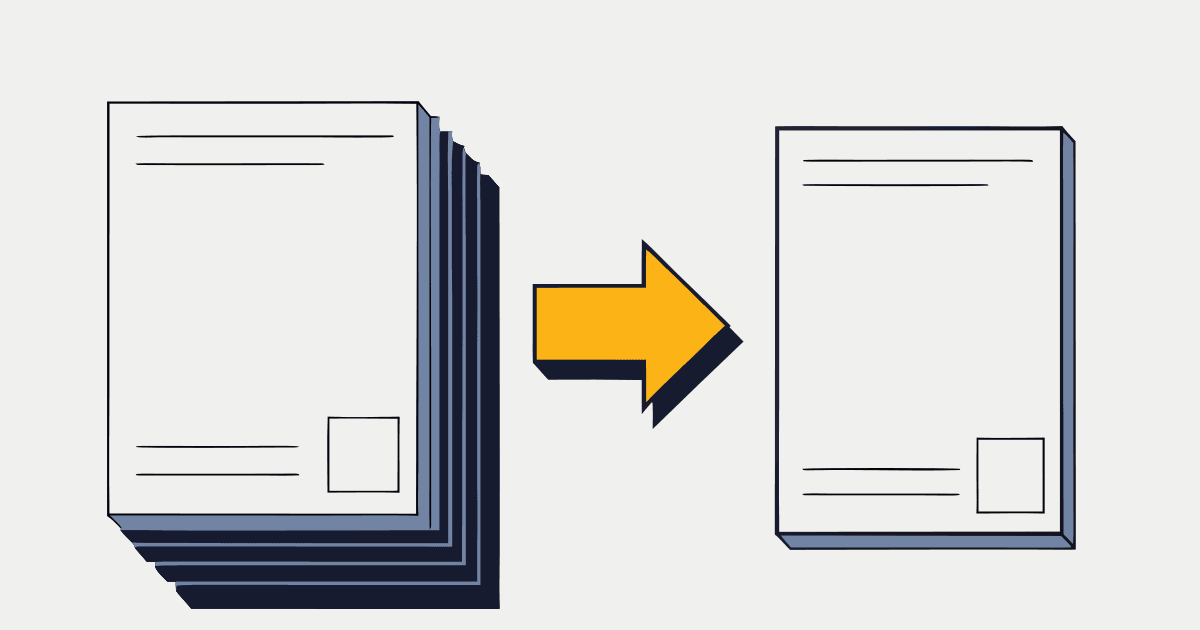
You already made the carousel. It performed well on Instagram. Now you want the same content working for you on LinkedIn — where a single document post can reach thousands of the exact professionals you're trying to attract.
The only thing in the way is the format. LinkedIn carousels are PDFs, not image posts. This guide walks through exactly how to convert an Instagram carousel into a LinkedIn-ready PDF — the slow manual way, the fast way, and how to avoid the cropping and quality issues that make repurposed carousels look amateurish.
Why You Can't Just Re-Upload Your Slides
LinkedIn doesn't have a native carousel feature. What creators call a "LinkedIn carousel" is a document post — you upload a PDF and LinkedIn renders it as a swipeable deck in the feed.
That creates two problems when you bring content over from Instagram:
- Format mismatch. Instagram slides are individual images. LinkedIn needs them merged into one PDF.
- Dimension mismatch. Instagram carousels are usually 4:5 portrait (1080×1350px). LinkedIn documents look best square (1:1) or landscape (16:9). Upload portrait slides as-is and they get letterboxed with ugly bars or cropped so your text gets cut off.
So "converting" really means two things: reformatting the dimensions and merging into a PDF.
The Target Specs
Before converting, know what you're aiming for:
| Spec | Instagram carousel | LinkedIn PDF carousel |
|---|---|---|
| Format | Individual images | Single PDF document |
| Best dimensions | 1080×1350px (4:5) | 1080×1080px (1:1) or 1920×1080px (16:9) |
| Slides | Up to 20 | Up to 300 (5–15 is the sweet spot) |
| File type | JPG / PNG | |
| Max file size | 30MB per image | 100MB (aim for under 10MB) |
For the full detail, see our LinkedIn carousel specs and Instagram carousel sizes guides.
Method 1: The Manual Way (20–60 Minutes)
If you want to do it by hand in Canva, Figma, or PowerPoint:
- Export your Instagram slides as images (or open the original design file).
- Create a new canvas at LinkedIn dimensions — 1080×1080px is the safest.
- Rebuild each slide at the new ratio: re-position text, re-size graphics, fix anything that gets cut off going from portrait to square.
- Rewrite the cover slide so it works as a LinkedIn thumbnail.
- Export as a multi-page PDF with fonts embedded (use "PDF Print" in Canva).
- Check the file size — keep it under 10MB for fast loading.
This works, but it's slow and tedious, especially if you post regularly. Most creators give up here and either skip LinkedIn or post broken-looking slides.
Method 2: The Fast Way (About 30 Seconds)
igli is built for exactly this conversion. Instead of rebuilding every slide, you:
- Add your carousel images — drag in your slides, or paste the Instagram post URL to pull them automatically.
- Reorder if needed — drag slides into the right sequence.
- Download your LinkedIn PDF — igli reformats the slides to LinkedIn dimensions and merges them into one PDF.
Then you upload that PDF to LinkedIn as a document post. No rebuilding, no manual resizing, no PDF-stitching tools.
Convert your carousel now
Drag in your Instagram slides (or paste a post URL) and download a LinkedIn-ready PDF in about 30 seconds.
How to Upload the PDF to LinkedIn
Once you have your PDF:
- Click Start a post on LinkedIn (desktop) or tap Post (mobile).
- Select the document icon (📄) — not the image button.
- Upload your PDF and add a descriptive document title.
- Write a caption with a strong opening line, then publish.
For the complete walkthrough, see how to post a carousel on LinkedIn.
Avoiding Quality Loss
A few things keep your converted carousel looking sharp:
- Start from the highest-resolution slides you have. Converting upscaled or compressed images bakes in the blur.
- Keep text away from the edges. When portrait becomes square, edge text is the first thing to get clipped. Aim for a 50px safe margin.
- Embed fonts if you're exporting your own PDF, so LinkedIn doesn't substitute system fonts and break your layout.
- Preview on mobile before posting — over 60% of LinkedIn happens on phones.
When to Adapt the Content (Not Just the Format)
Format conversion gets your carousel on LinkedIn. A couple of content tweaks get it to perform:
- Rewrite the hook. Instagram hooks are punchy and emotional; LinkedIn hooks do better when they're insight- or data-forward.
- Strengthen the final CTA. Swap "save this" for "what would you add?" or "DM me for the full framework."
- Write a fresh caption. LinkedIn captions are longer and narrative — don't copy-paste from Instagram.
More on this in our repurposing guide and the Instagram vs. LinkedIn carousel comparison.
Frequently Asked Questions
How do I convert an Instagram carousel to a LinkedIn PDF for free?
Use igli: add your slides or paste the Instagram post URL, then download a LinkedIn-ready PDF. The free tier adds a small watermark; premium exports are watermark-free.
What size should the PDF be?
Square (1080×1080px) is the safest for LinkedIn, especially for mobile. Use landscape (1920×1080px) for data-heavy or presentation-style decks.
Will my slides get cropped?
Only if you upload portrait (4:5) slides directly. Reformatting them to 1:1 or 16:9 first — which igli does automatically — prevents cropping and letterboxing.
How many slides should the LinkedIn version have?
LinkedIn allows up to 300 pages, but 5–15 slides is the engagement sweet spot. Higher completion rates signal value to the algorithm.
Convert Your First Carousel
You did the hard part already — the content exists. Don't let a format difference keep it off the platform where it could be earning you leads.
Turn your carousel into a LinkedIn PDF
Drag in your Instagram slides and get a LinkedIn-ready PDF in about 30 seconds. Free to try, no account needed.