
Blog
How to Convert a LinkedIn PDF Carousel Back to Instagram Images
Turn a LinkedIn PDF carousel back into Instagram-ready images — how to extract slides, resize for Instagram, and repurpose document posts into feed carousels.
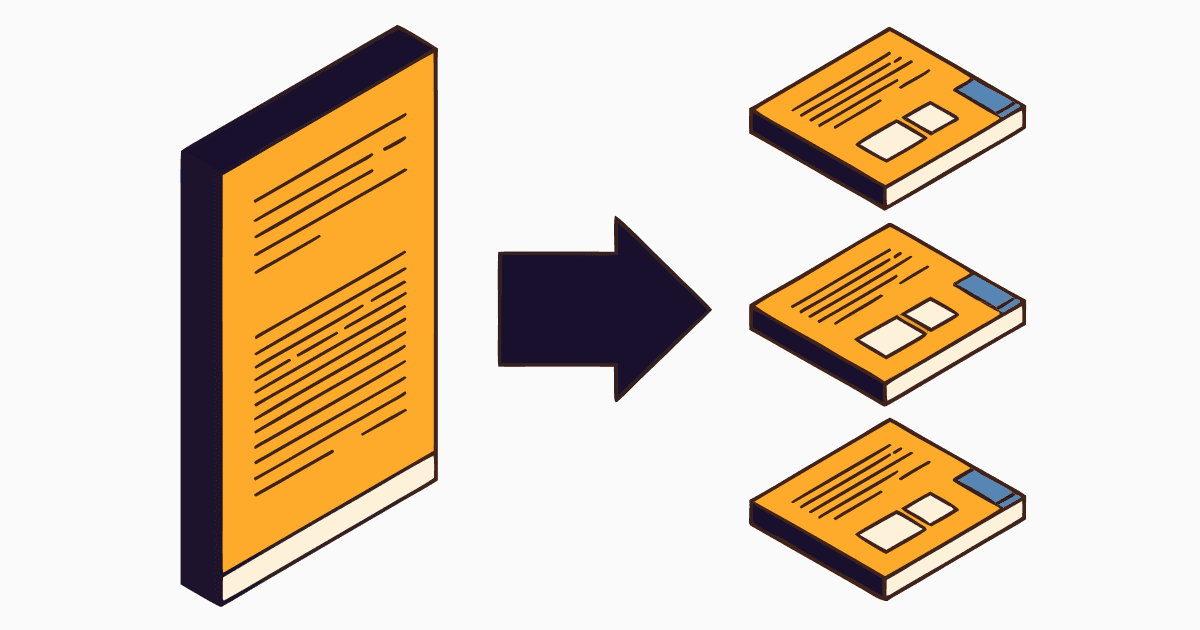
Repurposing usually flows Instagram → LinkedIn. But plenty of creators build on LinkedIn first — a polished PDF document post — and then want that same content on Instagram. The problem is the reverse of the usual one: you have a PDF, and Instagram needs individual images.
Here's how to convert a LinkedIn PDF carousel back into Instagram-ready slides.
Why You Can't Just Upload the PDF
Instagram is image- and video-first. There's no PDF document post. To get your LinkedIn carousel onto Instagram, you need to:
- Extract each page of the PDF as a separate image (JPG or PNG).
- Resize from LinkedIn's square/landscape to an Instagram-friendly ratio.
- Upload the images as a normal Instagram carousel.
So "LinkedIn PDF to Instagram" really means PDF → images → resized for Instagram.
The Target Specs for Instagram
| Spec | LinkedIn PDF | Instagram carousel |
|---|---|---|
| Format | Single PDF | Individual images |
| Dimensions | 1080×1080 or 1920×1080 | 1080×1350px (4:5) recommended |
| File type | JPG / PNG | |
| Slides | Up to 300 | Up to 20 |
Instagram's best-performing ratio is 4:5 portrait (1080×1350px) — it takes up the most feed space. Your square LinkedIn slides will work as 1:1, but consider adding padding to reach 4:5. (Full Instagram sizes guide.)
Method 1: Convert the PDF to Images Online
The fastest path is a PDF-to-images converter. igli has a built-in PDF to images mode: upload your LinkedIn PDF and it extracts each page as a clean image you can post to Instagram.
- Open igli and switch to the PDF to IMG tab.
- Upload your LinkedIn carousel PDF.
- Download the extracted slide images (JPG or PNG).
- Upload them to Instagram as a carousel.
Turn your LinkedIn PDF into Instagram slides
Use igli's PDF-to-images mode to extract every page of your LinkedIn carousel as a ready-to-post image.
Method 2: Export From Your Design Tool
If you still have the original design file (Canva, Figma, PowerPoint), the cleanest option is to re-export the slides as PNGs at Instagram dimensions. No quality loss, full control over the ratio.
Resizing for Instagram (Optional but Worth It)
Square slides post fine, but reframing to 4:5 portrait gets you more feed real estate:
- Add top/bottom padding in your brand color to extend 1:1 to 4:5, or
- Re-export from the source file at 1080×1350px.
Keep important text away from the bottom ~250px on slide 1, where Instagram's UI overlaps. Extracted images are only as sharp as the PDF allowed, so if yours look soft, check how images are sized inside a LinkedIn PDF.
Adapt the Content Too
Format is only half of it. Going from LinkedIn to Instagram, consider:
- Punchier hooks — Instagram audiences scroll faster than LinkedIn readers.
- Less text per slide — split dense LinkedIn slides into more, lighter Instagram slides.
- Caption + hashtags — Instagram captions lean on hashtags for discovery; rewrite, don't copy.
More on the differences: Instagram carousel vs. LinkedIn carousel.
Frequently Asked Questions
How do I convert a LinkedIn PDF carousel to Instagram?
Extract each PDF page as an image, resize to an Instagram ratio (1080×1350px is best), then upload the images as a normal Instagram carousel. igli's PDF-to-images mode handles the extraction.
Can I post a PDF directly to Instagram?
No. Instagram doesn't support PDF posts — you need individual images. Convert the PDF to images first.
What's the best Instagram size for repurposed LinkedIn slides?
4:5 portrait (1080×1350px) performs best. Square (1:1) works too; add padding to extend square slides to 4:5.
Full-Circle Repurposing
Whether you start on Instagram or LinkedIn, your carousels can live on both. igli converts in both directions — images to a LinkedIn PDF, or a LinkedIn PDF back to images.
Turn your carousel into a LinkedIn PDF
Drag in your Instagram slides and get a LinkedIn-ready PDF in about 30 seconds. Free to try, no account needed.