
Blog
How to Save an Instagram Carousel as a PDF (No App, No Login)
Save any public Instagram carousel as one clean PDF — every slide, in order — then file it in Notion, Obsidian, Readwise or Drive so you can actually find it again.
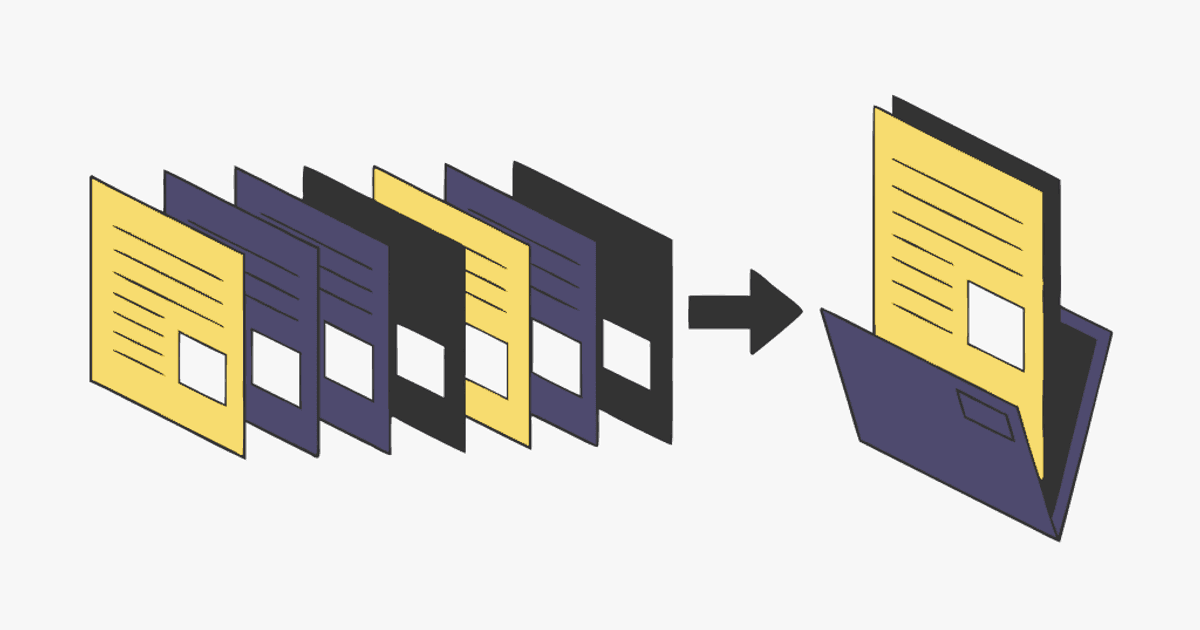
You saved it. You know you saved it. It was a 9-slide carousel about pricing pages, or a shoulder workout, or a recipe where the ingredients were on slide 2 and the steps on slides 3 through 8. Now it's somewhere in a pile of 2,000 saved posts, and Instagram's search can't see inside images.
That's the problem with Instagram's Save button: it stores a pointer, not a copy. If the creator deletes the post or goes private, your save is gone. If you want to search it, annotate it, or read it offline, you can't. And if you screenshot every slide instead, you end up with 9 loose images in your camera roll with no order and no context.
The fix is boring and it works: save the carousel as a single PDF. One file. Every slide in order. Searchable by filename, droppable into whatever system you already use. Here's how to do it in about 30 seconds, and where to put the PDF afterwards so it doesn't become a second graveyard.
A note on rights: this is for your own reference library — the same way you'd clip an article. Only keep what you're allowed to keep, credit the creator if you ever share it, and don't republish someone else's slides as your own.
Why a PDF beats the alternatives
A quick, honest comparison of the usual ways people try to keep Instagram carousels:
- Instagram Save / Collections — free and instant, but it's a bookmark. No offline copy, no text search, no export. Thousands pile up and you never go back.
- Screenshots — you get the pixels, but one carousel becomes 8–20 images with no order, no source link, and no way to keep them together.
- Carousel downloaders — most give you a zip of JPGs and a page of ads. Still loose files.
- Read-later and bookmark apps (Readwise Reader, Raindrop, Pocket-style tools) — great for articles, but Instagram blocks them: they typically save the link or only the first image, and some capture a login-page screenshot instead of the post. Almost all of them, however, accept PDF uploads.
- A PDF — one file, slides in order, works everywhere, opens on any device, embeds in Notion, Obsidian, Readwise, Google Drive, Apple Notes. It's the lowest-common-denominator format on purpose.
How to save an Instagram carousel as a PDF (30 seconds)
You don't need an app or a browser extension, and it works on your phone.
- Copy the post link. On the carousel, tap the three dots (or the paper-plane share icon) → Copy link. On desktop, copy the URL from the address bar — it looks like
instagram.com/p/.... - Open igli and paste the link into the Instagram URL box. igli pulls every slide of the carousel in order. The post has to be public.
- Check the slides, pick a format. Portrait (4:5) or square (1:1) — match the original. Slides come in the order the creator posted them (with a credit you can also drag to reorder or drop one you don't need).
- Export the PDF. Save it to Files, Drive, or your downloads. Name it something you'll search for later:
pricing-page-teardown-@creator.pdfbeatsdownload (3).pdf.
That's it. No account. The free tier covers carousels up to 5 slides with a small watermark; a credit (from $0.20) handles up to 20 slides, watermark-free and at higher resolution — which is what you want for a reference copy you'll read for years.
Save a carousel as a PDF
Paste a public Instagram carousel link and get every slide in one clean PDF in about 30 seconds. No app, no login.
If you'd rather have the individual images than a PDF — say you want to use your own slides again — see how to download Instagram carousel images.
Where to put the PDF so you actually find it again
A PDF in your Downloads folder is only slightly better than a save in Instagram. The point is to get it into the place you already think in. These are the workflows people ask about most.
Notion (swipe file or content library)
Make a database called Swipe File with a few properties: Source (URL), Creator, Why I saved it (one line — the hook, the structure, the CTA), and Tags. Drag the PDF into the page body, or into a Files property. Notion renders PDFs inline, so you can flip through the slides without leaving the page. The "why I saved it" line is the part everyone skips and the part that makes the library useful six months later.
Obsidian (second brain)
Drop the PDF into your vault's attachments folder and embed it in a note with ![[pricing-page-teardown.pdf]]. Obsidian's built-in PDF viewer lets you read it in place and, with recent versions, highlight and link to specific pages. Put the note in the same folder as your own writing on the topic — the whole idea of a second brain is that captured ideas sit next to the ideas you're developing.
Readwise Reader (read and highlight it like an article)
Reader doesn't support Instagram, but it takes PDF uploads. Upload the carousel PDF, read it in Reader, highlight the slides that matter, and your highlights flow into the rest of your Readwise review. This is the cleanest way to make Instagram content part of a reading habit instead of a scroll habit.
Google Drive, Apple Notes, or a plain folder
No system is fine too. A folder called Inspiration with one PDF per carousel, named well, is searchable, syncs everywhere, and survives any app shutting down. Add the source URL in the PDF's filename or a sidecar note if you care about attribution later.
Print it
Recipes, workouts, checklists, and step-by-step guides live better on paper than on a phone. A carousel-as-PDF prints as one page per slide — tape it to the fridge, put it in a training binder, or hand it to a client.
A 3-step habit that keeps the library alive
- Capture only with intent. When you hit Save on Instagram, ask: will I want this next month? If yes, make the PDF now. If not, let the save rot — that's what it's for.
- Write one line about why. Hook, structure, visual idea, a stat you want to verify. Without this line it's just a picture.
- Review weekly. Skim the week's PDFs before you plan your own content. Saved inspiration is only useful if it's in front of you when you're making something.
Frequently Asked Questions
Can I save an Instagram carousel as a PDF on iPhone or Android?
Yes. Copy the post link in the Instagram app, open igli in your phone's browser, paste the link, and export. The PDF saves to Files (iOS) or Downloads (Android) — no app install needed.
Does this work for private accounts or Reels?
No. igli fetches public carousel posts only. Reels are video, not slides — for those, a screenshot of the key frame or a note with the link is usually enough.
Will the PDF keep the original quality?
The free tier exports a web-quality PDF with a small watermark (up to 5 slides). Paid exports (from $0.20 per export) are higher resolution, watermark-free, and handle up to 20 slides. For a reference copy you'll keep, the paid export is worth it.
Is saving someone else's carousel allowed?
Keeping a copy for personal reference — like clipping a magazine article — is what this is for. Republishing someone else's slides, or passing them off as yours, isn't, and usually violates Instagram's terms. When in doubt, save the link alongside the PDF and credit the creator.
Can I do the reverse — turn a PDF into Instagram slides?
Yes. igli also converts a PDF back into Instagram-sized images, which is handy if your own notes or a LinkedIn document carousel deserve a second life on Instagram.
Stop losing the carousels you save
Paste the link, get a PDF, file it where you think. Free to try, no account.