
Blog
Save Instagram Carousels to Notion, Obsidian or Readwise (the PDF Way)
Step-by-step workflows for saving Instagram carousels into Notion, Obsidian and Readwise Reader — why the native integrations fail on carousels and how a PDF fixes it.
You found a 12-slide carousel on Instagram — a pricing teardown, a design system walkthrough, or a meal-prep routine you want to reference next week. You use Notion, Obsidian, or Readwise Reader to organize everything else. So you try to get the carousel in there.
It doesn't work.
Notion's Web Clipper saves the link and maybe the first image. Obsidian has no Instagram importer — a forum request from May 2024 is still unanswered. Readwise Reader doesn't support Instagram at all. Zapier's Instagram trigger returns only the first slide of a carousel, which has been unresolved since 2024. Raindrop saves a bare link — its feature request for Instagram image saving has been open since 2021.
Every PKM tool (Personal Knowledge Management — apps that organize your notes and ideas) fails on Instagram carousels for the same reason: Instagram doesn't expose carousel slides through any public API or embed format. The tools can only see the link or, at best, the cover image.
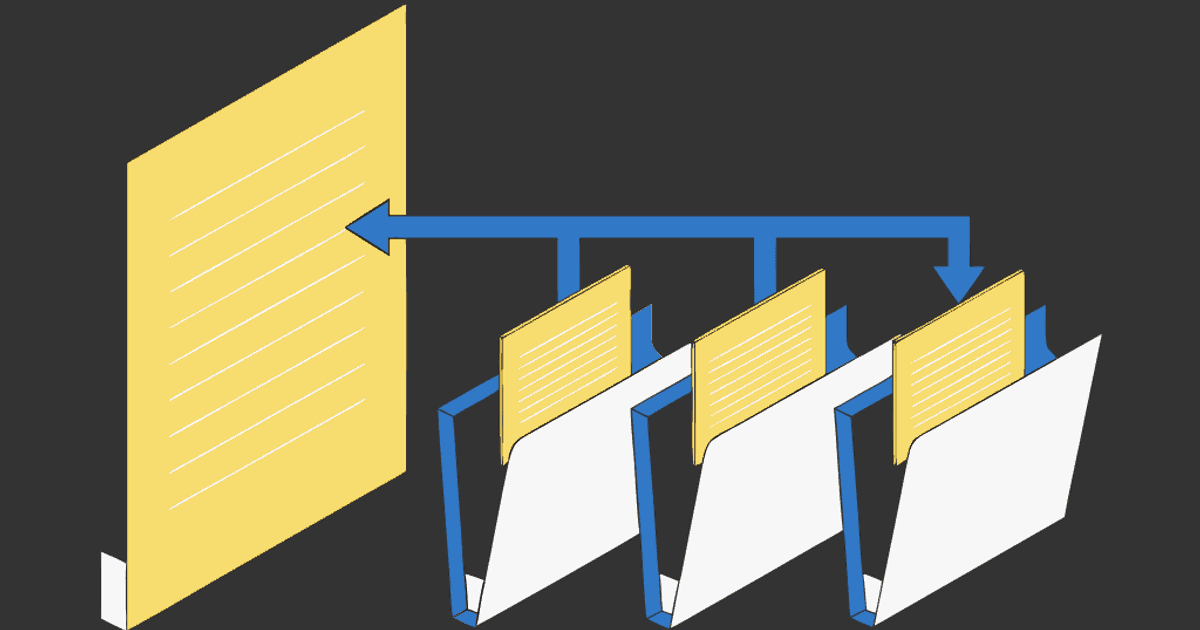
The fix is one extra step: turn the carousel into a PDF first. Every tool listed above accepts PDF uploads. A PDF keeps all slides in order, in one file, and once it's in your system it's searchable, taggable, and annotatable — exactly like any article or document you'd clip.
This guide walks through the concrete workflow for each tool. Start with the PDF, then pick the section for the tool you use.
Personal reference only. Save what you need, credit the creator if you share it, and don't republish someone else's slides.
Step 1: Make the PDF (30 seconds, same for all three tools)
Before the carousel can go into Notion, Obsidian, or Readwise, it needs to be a file. Here's how:
- Copy the carousel link. On the post, tap the three dots (or the share icon) → Copy link. The URL looks like
instagram.com/p/.... - Open igli and paste the link. igli pulls every slide in order. The post has to be public.
- Export as PDF. Pick portrait (4:5) or square (1:1) to match the original. Save it to your device with a name you'll recognize:
pricing-teardown-@creator.pdf— notdownload (7).pdf.
Free exports cover up to 5 slides with a small watermark. A credit (from $0.20) handles up to 20 slides at higher resolution, watermark-free. For a reference copy you'll annotate and revisit, the paid export is worth it.
For a deeper walkthrough with screenshots and tips, see the full guide: how to save an Instagram carousel as a PDF.
Turn a carousel into a PDF
Paste a public Instagram carousel link and get every slide in one clean PDF. No app, no login.
Notion: carousels in a swipe-file database
Notion renders PDFs inline, which makes it unusually good for carousel archives. You can flip through every slide without leaving the page.
Set up the database (once)
Create a database called Swipe File (or whatever fits your system). Add these properties:
- Source (URL) — paste the original Instagram link.
- Creator (text) — the handle, so you can filter by who made it.
- Why I saved it (text) — one line: the hook, the layout trick, the CTA style, the recipe. This is the property everyone skips and the one that makes the database useful in three months.
- Tags (multi-select) —
pricing,design,recipe,workout, whatever categories you work with.
Add a carousel
- Create a new page in the database.
- Fill in the properties — takes 15 seconds if you do it while the carousel is still on your screen.
- Drag the PDF into the page body, or drop it into a Files & media property.
Notion embeds the PDF as a scrollable viewer. You see every slide in order, right in the page, no external app needed. The database view lets you filter by tag, sort by date, and search by the "why I saved it" text.
Why this beats Notion's Web Clipper for carousels
The Web Clipper saves a link and the post's cover image. It can't reach the other slides — Instagram blocks it. With the PDF, you get the full carousel embedded and readable inside Notion, independent of whether the original post stays up.
Obsidian: carousels in your vault
Obsidian's built-in PDF viewer has improved a lot. You can embed a carousel PDF in any note, read it inline, and in recent versions highlight and annotate specific pages.
Set up (once)
Decide where attachments go. Most vaults use a dedicated folder — attachments/, assets/, or whatever your settings specify under Settings → Files & Links → Default location for new attachments. Carousel PDFs go there.
Add a carousel
- Move or save the PDF into your vault's attachments folder.
- In the note where you want the carousel, embed it:
![[pricing-teardown-@creator.pdf]]
Obsidian renders the PDF inline with a page-by-page viewer. You can scroll through every slide in the note. In recent Obsidian versions, you can highlight text in the PDF and those highlights are searchable across your vault.
Pair it with context
The value of a second brain is that captured material sits next to your own thinking. Don't just dump the PDF — put the embed in the note where it's relevant. Working on pricing? The pricing-teardown carousel belongs in your pricing research note, not in a generic "saved stuff" folder.
Add a few lines above the embed: where you found it, what caught your eye, what you want to steal. The PDF is the raw material; your annotation is what makes it useful.
Alternative: Social Archiver plugin
If you prefer markdown over PDFs, the Social Archiver community plugin converts social media posts into markdown notes. It's a different approach — markdown-first instead of PDF-first — and worth knowing about if your vault is text-heavy. For carousels specifically, the PDF approach preserves the visual layout that makes carousels carousels.
Readwise Reader: carousels as reading material
Readwise Reader is built for articles, books, and PDFs. It has no Instagram parser and probably never will — Instagram doesn't give third-party apps access to carousel slides. But Reader accepts PDF uploads, and once a carousel PDF is in Reader, it works like any other document: you can read it, highlight specific slides, and those highlights flow into your Readwise review.
Add a carousel
- In Reader, use the upload option (the + button → Upload) and select the carousel PDF.
- Read it like any other document. Each slide is a page.
- Highlight the slides that matter — a hook you want to remember, a layout you want to reference, a stat you want to verify.
Your highlights sync to Readwise and show up in your daily review alongside book passages and article clips. This is the cleanest way to make Instagram content part of a reading and review habit instead of a scrolling habit.
Why Reader can't do this natively
Reader parses web pages, RSS feeds, emails, and PDFs. Instagram posts aren't any of those — they're rendered client-side behind a login wall, and the carousel slides aren't in the page's HTML in a way Reader can extract. The PDF step bridges the format gap. Once it's a PDF, Reader treats it like any other document.
When the original post disappears
This is the part that matters most. Instagram saves are pointers — if the creator deletes the post, goes private, or gets banned, your save disappears with no warning. A PDF in your Notion database, Obsidian vault, or Readwise library is a file you own. It stays whether the original post exists or not.
This doesn't mean you should archive everything. Most saved posts aren't worth the 30 seconds. But the ones you'd actually be upset to lose — a breakdown you reference in your work, a recipe you cook from, a design you study — those are worth making into a PDF and filing properly.
For more on why saves vanish and how to protect the ones that matter, see Instagram saved posts are bookmarks, not copies.
Frequently Asked Questions
Does this work on iPhone and Android?
Yes. Copy the carousel link in the Instagram app, open igli in your phone's browser, export the PDF, then share it to Notion, Obsidian (via the mobile app's share sheet), or upload it to Readwise Reader. No app install needed.
Can I save a carousel from a private account?
No. igli works with public posts only. If you follow a private account, you can screenshot the slides, but there's no way to pull them programmatically without being logged in — and igli doesn't ask for your Instagram credentials.
What about Raindrop, DEVONthink, or other tools?
Any app that accepts PDF files works with this method. Raindrop lets you upload files to bookmarks. DEVONthink indexes PDFs with full-text search. Apple Notes embeds PDFs inline. The PDF is the universal adapter — make it once, file it anywhere.
How many slides can I save?
The free tier covers carousels up to 5 slides (with a small watermark). A credit (from $0.20) handles up to 20 slides at higher resolution, watermark-free. Instagram allows up to 20 slides per carousel, so one credit covers any carousel.
Is there a way to automate this — save every carousel I bookmark?
Not today. igli works one carousel at a time: paste the link, get the PDF. Bulk export of your entire saved-posts list would require Instagram login credentials, which igli deliberately doesn't ask for. The one-at-a-time approach means you only archive what's actually worth keeping.
Get the carousel into your system
Paste the link, get a PDF, drop it into Notion, Obsidian or Readwise. Free to try, no account.